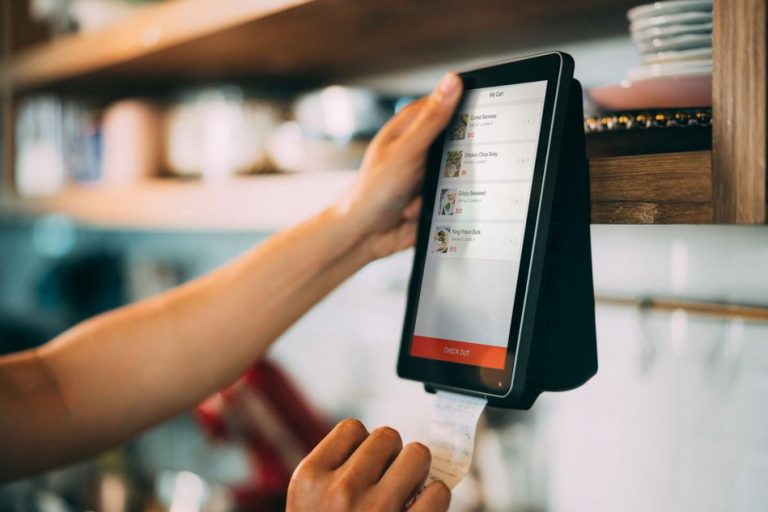
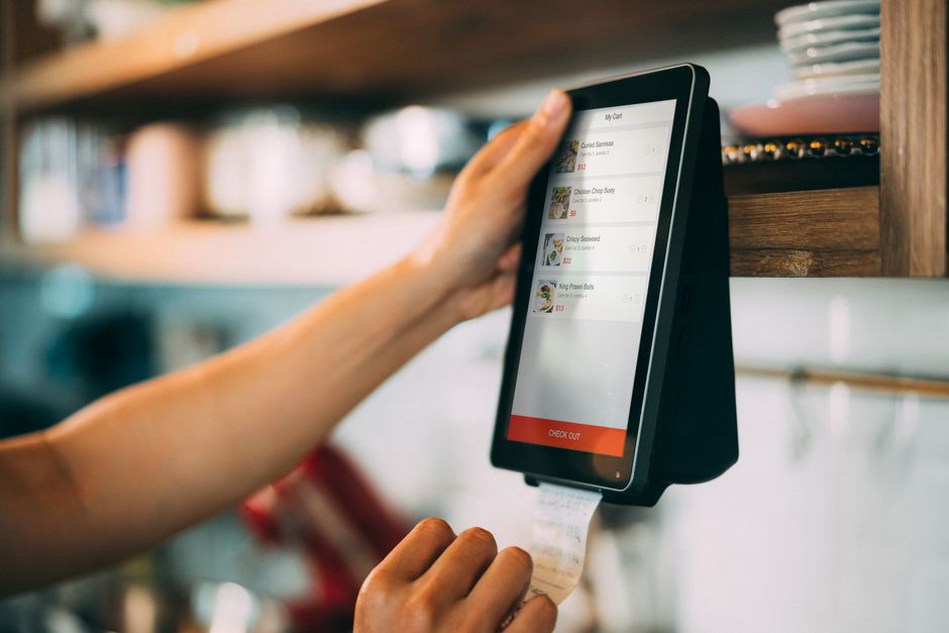
A shopper adds three pantry staples to a cart, enters a delivery address, and only then sees a shipping charge that changes the total. The checkout works, but leaving is a reasonable response. Before changing button colors or adding urgency messages, make the full cost and the next step clear.
Cart abandonment has no single cause. Some visitors are comparing options or saving a cart for later. Others intend to buy but hit an avoidable obstacle: a required account, an unclear delivery date, a difficult form, or a payment failure with no useful explanation. The aim is to remove those obstacles, not pressure someone into buying.
Find out where the checkout breaks down
Start with the path from cart to confirmation. Track how many shoppers reach contact details, delivery information, payment, review, and successful order placement. If checkout runs on one page, track meaningful actions within it instead of counting the page as a single step. Review results by device, delivery region, and payment method where sample sizes allow. A sharp drop after the delivery address appears may point to unexpected shipping costs or unavailable destinations; a drop at payment may point to failed transactions or a form that is hard to use.
A cart-abandonment percentage cannot tell you why someone left. Look at customer-support messages, failed-payment reasons, session recordings used with appropriate privacy protections, and a few observed usability tests. Ask participants to buy a low-cost test item or complete a simulated order while saying what they expect to happen. Note where they hesitate, backtrack, or ask for information that should already be visible.
Set a baseline before changing anything. Useful measures include checkout-start-to-purchase rate, payment failure rate, time to complete checkout, support requests about ordering, and refund or cancellation rates. More purchases are not a clean win if customers later discover they misunderstood the item or delivery terms.
Show the total before asking for effort
Display the item price, quantity, estimated shipping, applicable taxes, and other required fees as early as practical. Exact shipping or tax may depend on an address. If it does, explain what information you need and update the total promptly once you have it. Do not show a reassuring subtotal while hiding a substantial mandatory charge until the last screen.
Keep the order summary easy to inspect throughout checkout, especially on a phone. Show product names, sizes or variants, quantities, discounts, and the final payable amount. Let customers change a quantity or remove an item without losing everything they have entered. If editing takes them back to the cart, preserve their checkout details where feasible.
For paleo foods and other products marketed around ingredient choices, the selected variant matters as much as the price. A shopper may need to confirm the flavor, package size, or recipe version before paying. Use the specific product name and variant, not an internal stock code that only the store understands.
Let people check out without creating an account
Mandatory account creation adds a decision separate from buying the product. Offer guest checkout when the business and platform can support it. You can still collect an email address for the receipt and essential order updates, then offer an account after purchase if it has a genuine benefit. Be clear about when someone is creating an account; a purchase is not permission to send marketing messages.
Keep checkout predictable. Labels such as “Delivery,” “Payment,” and “Review order” show shoppers where they are and what remains. A progress indicator helps when the steps are real and distinct. It misleads people if a supposed final step reveals several more forms. One page or several matters less than whether shoppers can see the work ahead and recover from mistakes.
Keep optional actions away from required ones. Coupon boxes, newsletter offers, and add-on suggestions can distract from the purchase. If you need a coupon field, make it unobtrusive; do not suggest that everyone should leave to hunt for a code. Upsells should not shift the page or change the total without clear consent.
Make forms shorter and easier to correct
Ask only for information needed to fulfill the order, process payment, or meet a legal requirement. A delivery order may need a name, address, and way to contact the customer. It does not automatically need a date of birth or a second phone number. Mark optional fields clearly. If billing and delivery addresses often match, let shoppers copy one to the other.
Use visible labels, not placeholder text that disappears when someone starts typing. Match the input to the task: an email keyboard for email addresses on mobile, suitable address fields, and a clear format hint where a regional code is required. Support browser autofill, paste, password managers where accounts are used, and familiar payment autofill options. Do not force one phone-number format on international customers.
Validate entries when the feedback will help. If errors appear only after the whole form is submitted, shoppers must hunt for the problem. Errors that flash while they are still typing can be just as distracting. Point to the field, explain the fix in plain language, and keep the rest of their information. “Enter a valid postal code for this delivery country” is more useful than “Invalid input.”
Address suggestions can save typing, but manual entry must remain possible. Apartment numbers, rural routes, and addresses outside a provider’s database may not appear in suggestions. Do not silently swap in a guessed address. Let the customer review it before placing the order.
Make payment and delivery choices understandable
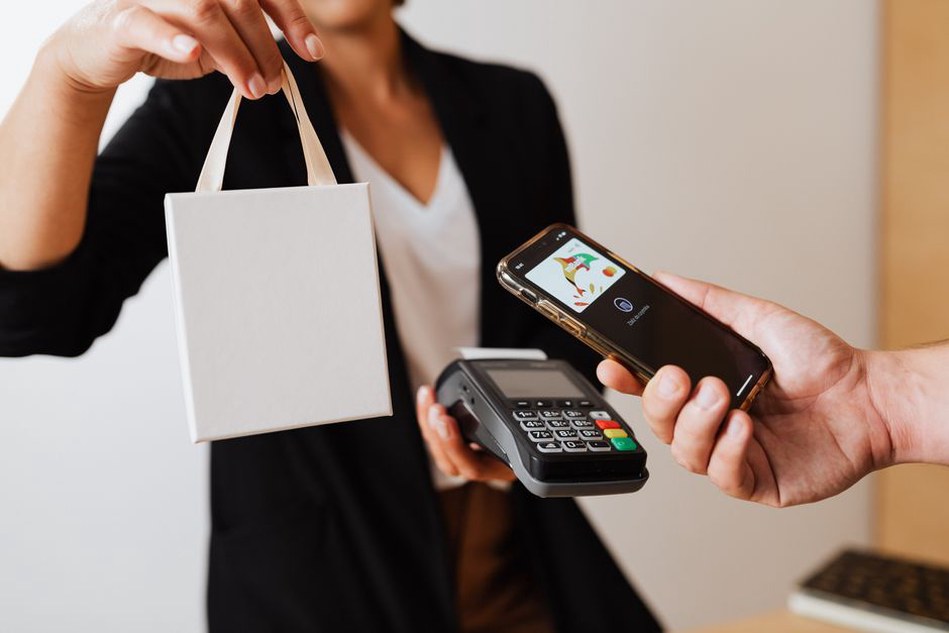
Offer payment methods that fit the countries and customers served, rather than adding every available logo. Show restrictions or extra charges before a method is selected. If payment fails, distinguish a correctable form error from a declined transaction where possible. Let the shopper try again or choose another method without re-entering the order. Keep sensitive payment details out of error messages and support logs.
Delivery options need the same clarity. Show the price, a realistic delivery window, and relevant limitations for each one. If a food item needs special handling or cannot be delivered to certain locations, say so before payment. “Fast shipping” tells shoppers less than an estimated dispatch date and delivery range. Avoid promising an exact arrival time the store cannot control.
Put returns, cancellations, and customer-support information where a cautious buyer can find them without leaving checkout. A brief statement with access to the full policy is more useful than vague trust badges. Security matters, but “100% safe” is a promise no page can make. A recognizable payment process, accurate policies, and a site that behaves reliably give shoppers more to go on.
Keep food claims separate from checkout pressure
Someone choosing a paleo or exclusion-friendly product may be checking ingredients closely. Make ingredient lists, allergen information, and meaningful preparation details accessible from the cart or product summary without erasing checkout progress. If you call a product paleo, explain what that means for the product rather than implying it suits every dietary need. The label alone does not establish that a food is free of a particular allergen or appropriate during an elimination phase.
Do not use checkout messages to promise digestive relief or suggest that a food treats a chronic condition. Dietary responses vary, and an ingredient list cannot establish an individual’s tolerance. People with persistent digestive symptoms should discuss them and significant dietary changes with a doctor; an exclusion diet does not replace medical care. Give shoppers the information they need without turning the payment page into health advice.
Avoid manufactured scarcity and countdowns that reset on reload. A truthful stock limit can help when quantities really are limited, but it should not obscure the total or rush someone past an allergen warning. If an item becomes unavailable during checkout, explain what changed and let the customer edit the order before charging them.
Check the mobile experience with a real order
Mobile checkout needs more than a resized desktop review. On a small screen, a sticky promotion can cover the “Continue” button, a collapsed order summary can hide the final total, and the on-screen keyboard can cover a validation message. Complete a test order on several commonly used phone sizes and browsers, including on a slower connection. Try keyboard navigation as well as touch where possible.
Check that text stays readable when enlarged, buttons have room to tap accurately, and errors make sense without color alone. A screen reader should identify field labels, required fields, and error messages. Test payment-provider handoffs and redirects too: buyers need to know whether payment succeeded and must not be charged twice after returning to the store.
Test changes without hiding the trade-offs
Prioritize fixes by evidence and impact. A broken payment button, surprise mandatory fee, or inaccessible required field needs attention before small visual refinements. For less certain ideas, change one meaningful aspect at a time or run a controlled test when traffic allows. Write down the hypothesis first—for example, “Showing the delivery estimate beside the shipping option will reduce exits at delivery selection”—and decide what results would support or challenge it.
Do not count purchases alone. Compare mobile and desktop completion rates, check for changes in payment failures, and watch for new support questions or order mistakes. A shorter form might speed up checkout but omit an address detail needed for delivery. A discount prompt might bring in more immediate orders while reducing average order value. With low traffic, short tests can be noisy; a handful of purchases is not enough to declare a winner.
After a fix goes live, repeat the checkout steps that exposed the problem. If shoppers left when shipping appeared, check that the cart now shows an estimate, the address step updates it accurately, and the final review shows the same charge. Keep a short log of the date, change, and result so a later platform update does not quietly bring the problem back.
For a final check, place a test order on a phone using a guest email address and an apartment number. Compare the variant, delivery charge, and total in the cart, on the payment screen, and on the receipt. Make sure the apartment number survives all three.