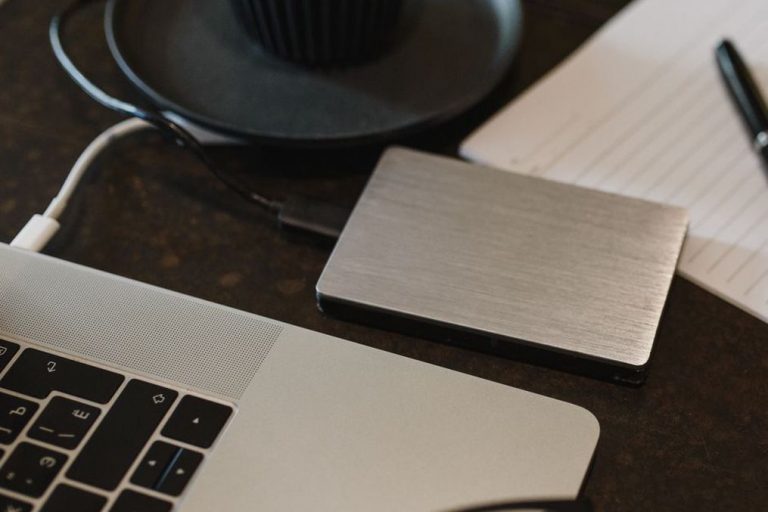
A folder called “Photos to Sort” can hold years of pictures. The trouble starts when it’s the only place you know to look. You don’t need to rename every file or rebuild your library. Make a safe copy first, choose where new photos will go, then work through older pictures in small batches when you need them.
Protect the collection before changing it
Before moving or deleting anything, find out where your photos live: on a phone, computer, external drive, cloud photo library, in a messaging app, or across several of these. Check whether your cloud service is syncing the library or keeping a separate backup. In a synced library, deleting a photo on one device may remove it everywhere. And a phone displaying cloud thumbnails may not have the full-resolution originals stored locally.
Make another copy of the files you can access, preferably on a separate drive or through an independent backup service. Open a few files and check folders from several years; a completed progress bar doesn’t prove the copy is usable. If you’re exporting a cloud library, check what comes with it: original files, edited versions, videos, and information such as dates or locations. Leave the original library untouched until you’ve tested the new copy.
Think of this first pass as an inventory, not a cleanup. A note might read: “Phone syncs to cloud; laptop has 2017–2021 folders; external drive has camera imports.” That’s enough to keep you from treating two copies of the same event as separate collections—or assuming an old drive is backed up when it holds the only copy.
Choose one home for new photos
Stopping the pile from growing is easier than sorting the entire past. Pick a primary home for new photos: a photo-library app or a folder on your computer. Apps offer search, face grouping, and automatic phone uploads. Folders give you a visible structure you can move between systems. Choose the one you can maintain and back up reliably.
Then set an intake rule. You might let phone photos sync to the primary library and import camera-card photos into an “Incoming” folder before putting the card away. Once a week or month, check that the imports arrived, remove obvious mistakes, and back up the collection. If several family members import photos, make sure everyone knows which location holds the main copy; otherwise, the same card can end up in several places.
You can keep both an app and a folder archive, as long as each has a job. The app might be for browsing, while the archive holds original exports. Test a small batch before dragging files out of an app: its albums and edits may not come along. An album may be a set of references inside the app rather than a folder of image files.
Make the existing mess searchable, not perfect
A useful first goal is to find a particular year, trip, person, or document within a few minutes. You rarely need individual filenames for that. Start with recent photos and older pictures you often look for. The rest can wait.
Use dates as a broad backbone
Photo apps usually display images by capture date. For a folder-based archive, a few predictable folders can do the job:
- 2024/2024-08 Coastal trip for a recognizable event
- 2024/2024-09 Everyday for photos that don’t belong to an event
- Unknown date for scans or files whose dates need checking
Years alone are fine if monthly folders would be too much work. Keep names consistent enough to sort naturally, but don’t lose an afternoon deciding between “Vacation,” “Holiday,” and “Trip.” Dates aren’t always trustworthy, either. Screenshots, scans, downloads, and pictures forwarded through messaging apps may show when the file was saved rather than when the photo was taken. If a date looks wrong, use what you know about the event; don’t change hundreds of timestamps based on a guess.
Create albums for the things you actually revisit
Folders answer “where is the file?” Albums answer “which photos do I want together?” If your app supports it, an album called “Grandparents” or “Garden progress” can gather pictures from several years without moving the originals. A few albums you use are easier to maintain than one for every weekend.
Favorites are an even quicker shortcut. Mark the pictures you might show or print, and leave the full sequence intact. The favorite mark helps you find them; it isn’t a backup or a replacement for the original file.
Sort in passes so decisions stay small
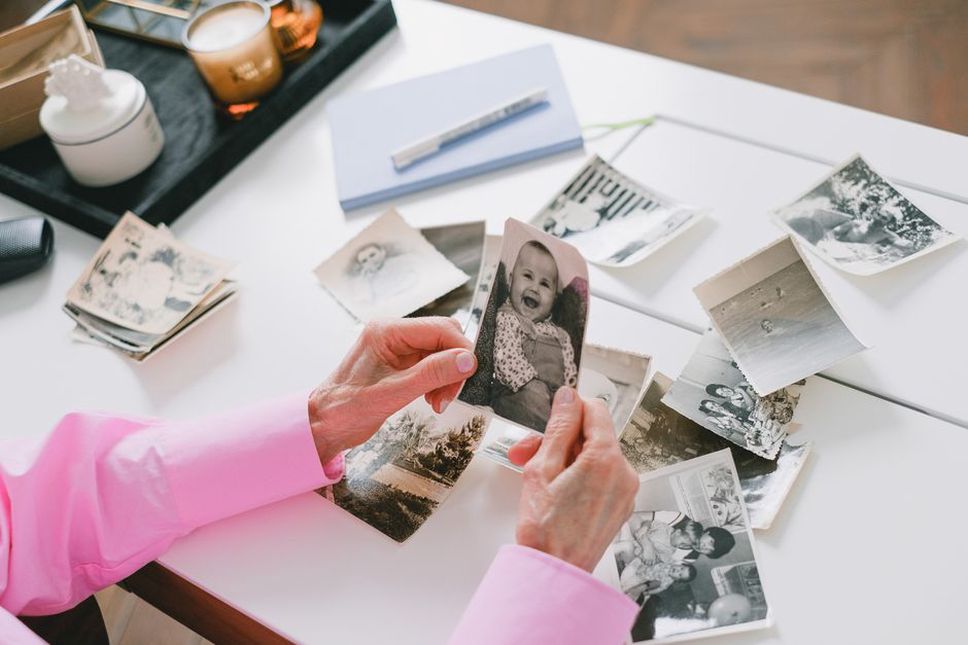
Trying to classify every photo at once gets exhausting. Take one source or a bounded period—a camera-card import or a single month—and stop when that batch is done. Work through it in passes:
- Remove obvious clutter. Blurry accidental shots, pocket photos, and repeated downloads are usually easy to spot. Before deleting one, check that it doesn’t show a detail you need.
- Group without fine sorting. Put the batch in the right year or event folder, or leave it in the main library with the correct date. Give uncertain files an “Unknown date” home rather than forcing a label.
- Pick highlights. Favorite a handful of pictures or add them to an album. You don’t need to rate every near-identical frame.
- Review deletions later. If your app has a recently deleted area, find out how long it keeps files. Don’t empty it right after a large sorting session.
Set a stopping rule before you start: twenty minutes, perhaps, or one import folder. A partly organized year is useful if you can find its photos. An elaborate naming scheme you abandon after two weeks isn’t.
Handle duplicates without losing the better copy
Duplicates turn up when a phone is imported twice, someone sends back a picture you took, or an edited photo sits beside its original. Similar thumbnails don’t mean the files are interchangeable. One copy may be smaller, more compressed, or missing date information; another may be the original linked to an edit in your photo app.
If your software can identify exact duplicates, start there, but review its suggestions before approving a large deletion. For similar images, compare dimensions, sharpness, and edits you want to keep. Live Photos, burst sequences, and short videos can look repetitive in a thumbnail grid while containing different material.
Unsure? Keep both for now. Storage is often cheaper than trying to recover a photo deleted from every synced device. Save large-scale duplicate cleanup for after you’ve verified a backup. A single intake route should also mean fewer new duplicates.
Separate sensitive and practical images
Photo libraries hold more than memories: receipts, identification documents, medical paperwork, recipes, appliance labels, and screenshots. They can crowd the timeline, and some need more careful handling. Where possible, move documents you need into a securely stored document system. Verify the transfer before removing them from your photo library. Be careful with shared albums and automatic sharing when an image shows an address, a child’s details, or other private information.
Sort screenshots by purpose instead of naming each file. Put a recipe idea or travel confirmation where you’ll use it, and delete expired information you no longer need. If a screenshot is the only record of something important, make sure its new location is covered by your backup plan. The photo library doesn’t have to be your filing system for every document that lands there.
Keep backups distinct from syncing
Being organized won’t help if you can’t recover the library. Sync makes the same collection available across devices, but it can spread an accidental deletion to all of them. A backup is a separate copy you can use if the primary library, account, or device becomes unavailable. Keep the primary library and a copy on a separate drive; when feasible, keep another copy in a different location or service.
Back up often enough to protect the pictures you’re adding. After a trip, import and back up the camera card before formatting it. Periodically open a few older and newer backup files, including a video, and check that the expected folders or exports are present. A backup drive left connected all the time may be affected by accidental deletion or a computer problem, too.
Write down where the originals and backups are, when you last checked them, and how to access them. Store account recovery information securely—not in a public album or only on the device it’s meant to protect. If several people contribute photos, agree on who checks the backup.
Make a small routine you can repeat
Once a month, check that phone syncing completed, import camera files, remove obvious junk from that month, and mark pictures you’d like to find again. Confirm that the backup ran. Older photos can wait for focused sessions: one year, one event, or one box of scanned prints at a time.
If the archive is enormous, note where you stopped: “Sorted laptop imports through June 2020; drive folder ‘Old Phone’ not reviewed.” Leave unreviewed files in a clearly named holding folder rather than moving them back into “Incoming” each time. You’ll be able to see what’s left without losing track of what you’ve finished.
For a first twenty-minute session, pick one recent month. Verify it’s backed up, remove five clearly unwanted shots, and put three keepers in an album or mark them as favorites. Add the finished month to your inventory note. The rest can stay where it is until next time.