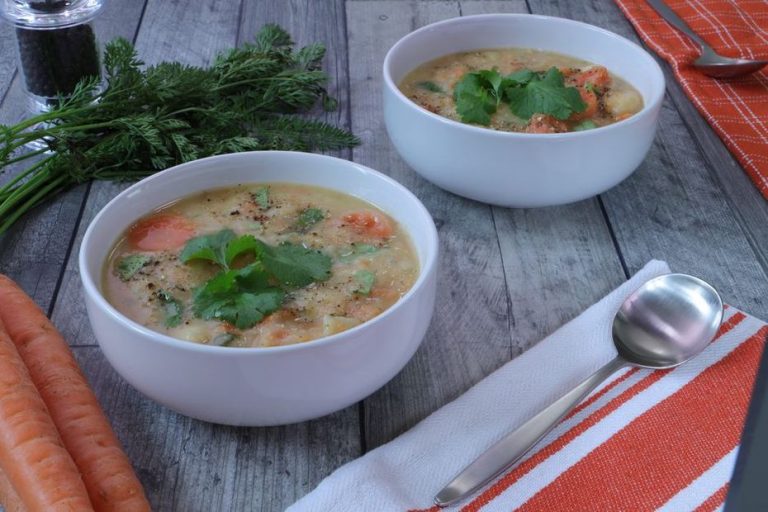
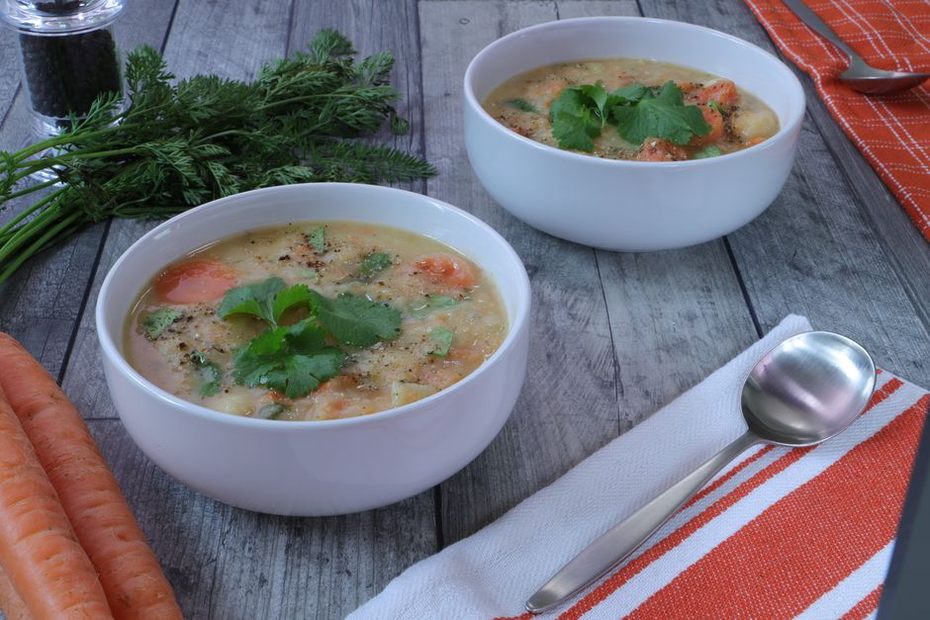
You might save a recipe photo as roasted-carrot-soup.webp and give it the alt text “Carrot soup topped with chopped parsley.” The file name helps you find the photo; the alt text tells readers what it adds to the page. Use that same photo as a purely decorative banner, and the file name can stay while the alt text should be empty.
File names help you identify and manage images
When you upload an image to WordPress, its file name usually becomes part of the URL. WordPress may clean up the name, add a suffix if the name is already taken, or create copies at different display sizes. A descriptive name is especially handy when you're sorting through photos from the same shoot: roasted-carrot-soup-blending.webp tells you which shot you're opening. IMG_2846.webp doesn't.
Name files before uploading them. Lowercase words separated by hyphens are easy to scan and keep you from having to think about spaces or capitalization. Start with the subject and add just enough detail to tell one shot from another:
carrot-soup-chopped-vegetables.webpfor the prep shot.carrot-soup-blending.webpfor the blending step.carrot-soup-parsley-garnish.webpfor the finished bowl.
Make sure the extension matches the file format. Changing .jpg to .webp doesn't convert the image.
If you're posting a food diary example, keep names, initials, and personal health details out of the public file name. Use sample entries or remove identifying information from the image before you upload it. A neutral file name won't hide what's on the page.
A descriptive file name can give search engines a clue about the subject, but it can't replace useful text around the image. You don't need to tack diet labels or health claims onto carrot-soup.webp. If you can tell which photo it is without opening it, the name is probably specific enough.
Alt text conveys what the image adds to the page
Alt text goes in the image's alt attribute. Screen readers can read it aloud, and browsers may show it if the image doesn't load. Rather than listing everything in the frame, describe what a reader would miss if they couldn't see the image in that spot.
In a recipe introduction, “Carrot soup topped with chopped parsley” gives a quick picture of the finished dish. For a close-up in a step about texture, “Blended soup coats the back of a spoon” is more useful. The spoon matters because it shows what consistency to look for. If that cue is essential, put it in the recipe instructions too, so no one has to rely on the photo.
A plain phrase or sentence is usually enough. Skip “image of” unless the type of image matters. “Handwritten diary entry” tells the reader to expect something different from “weekly symptom chart.”
Stick to what the image shows. A food and symptom log can show that someone recorded bloating after a meal, but it can't establish that an ingredient caused it. Discuss persistent symptoms and any planned dietary changes with your doctor.
When empty alt text is the right choice
Use alt="" for an image that's purely decorative or adds nothing to the nearby text. A sprig of rosemary used as a section divider doesn't need to interrupt the reading order with “Rosemary sprig.” An empty attribute lets assistive technology skip the image. Leaving the attribute out isn't the same thing: some screen readers may read the file name instead.
If the image is the only thing in a link, the link needs an accessible name that tells readers where it goes. For a clickable soup thumbnail, the alt text might be “Roasted carrot soup recipe.” If the thumbnail and the visible recipe title share one link, empty alt text on the thumbnail usually prevents the title from being read twice. If they are separate links, the thumbnail link still needs a name of its own.
When a short description cannot do the job
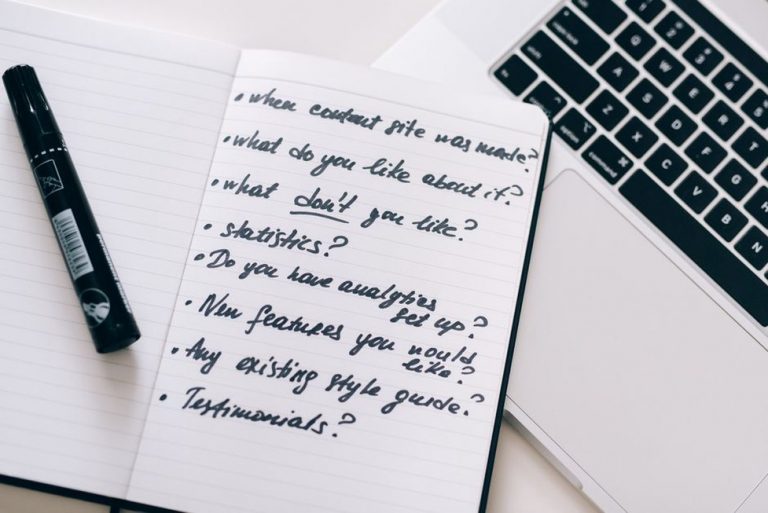
A screenshot of a food diary template might contain column headings, sample entries, and notes. Rather than packing all of that into the alt text, briefly identify the screenshot and put the useful information in ordinary text or an HTML table nearby. For example, use “Sample food diary with one completed row” as alt text, then show the time, meal, and symptom notes in a visible table. If the full template already appears beside the screenshot and the screenshot adds nothing, empty alt text may be appropriate.
The same goes for a chart or a graphic about gradually reintroducing foods. Put the key labels, comparisons, and caveats in the article itself. Readers shouldn't have to sit through a long image description to get a detail that would be clearer in the body text.
Captions, media titles, and alt text are separate fields
A caption appears next to the image, where anyone can read it. It can add context the photo can't show, such as “The soup thickens slightly as it cools.” Alt text can describe the visual cue: “Soup clinging to the back of a spoon.” If the caption already covers everything that matters and the image isn't a link, there's no need to repeat it in the alt text.
The WordPress media title helps you identify an attachment in the library. A theme or gallery may display that title, but filling it in doesn't set the image's alt attribute. The media title might be “Carrot soup, spoon test,” while the alt text describes what the spoon shows about the soup's consistency. Check the image block rather than assuming the library label will appear on the page.
Set both fields at the right stage in WordPress
- Name the file before uploading it. Pick a name that will still make sense if you use the image in another recipe or guide.
- Decide what the image does in the post. A cooking step, a decorative divider, and a linked thumbnail call for different alt text decisions, even when they use the same file.
- Set the alt text for that placement. The Media Library can supply default alt text when you insert an image, but editing the library entry may not update blocks that are already published. Check the individual block and any featured image or gallery your theme displays.
- Check the page as it actually renders. Use your browser's developer tools to check the
altattribute. Look for the intended description on an informative image and an explicitly empty attribute on a decorative one.
Fix old alt text without breaking old image URLs
Editing alt text doesn't require renaming the image. Changing the media title doesn't rename the uploaded file either. Renaming or replacing the file itself can leave posts, recipe cards, or social previews pointing to an old URL. If IMG_2846.jpg loads and the name is the only thing wrong with it, there's usually little reason to move it just to tidy the URL.
Start with photos that carry instructions or data. Say a batch-cooking post uses the alt text “Meal prep,” copied from the library title, for a photo that shows how much room to leave for expansion. Change the alt text in that block to “Soup container with space left below the lid,” and keep the storage instruction in the recipe text. The photo can stay at its existing URL.